When you first log in you will see a screen similar to that below:
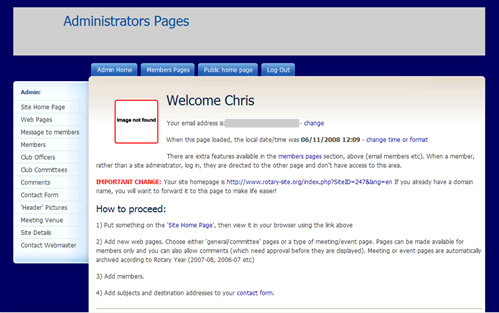
(Note I have blocked out my email address).
Before doing anything else, it is much easier to view your progress if you have either two windows open or two tabs (depending on your browser).
You can either right-click on the ‘Public home page’ menu tab or right-click on the text link in the body of the page.
Click on the other tab that is now at the top of your browser window and you will see your home page as it is at the moment -empty!
Note you now have 1 page visit – that’s you! This increments by one each time someone visits, giving you a rough idea of visitors. This is available on evey page.
Click on the admin tab to return to your administrators area.
Click on the ‘Site Home Page’ link at the top of the menu. The editor page opens. Type some text into the box, then click ‘update’ at the bottom of the form.
Flip over to the other tab and REFRESH the page (you were looking at the version before you entered some text.
After refresh, the updated page will display:
Next, I’m going to change the text to make it more relevant and change the style of some text.
Click the ‘Site Home Page’ menu if you aren’t already on it.
Position the cursor (mouse pointer) somewhere on the first line of text and select ‘Heading 1’ from the drop-down mena, as shown next. The update the page and flip tabs to the public page. Remember to refresh (F8) and you can see how the text has change style. As a general rule, only use heading styles for HEADINGS, not for whole paragraphs of text.
Next, we will add a picture to the home page